Getting Started
Prerequisite
- Familiarize yourself with the architecture of OmniCore by reviewing the concepts section.
- Possess the Google Cloud Platform (GCP) Billing Admin Role.
- Log in to GCP and navigate to the GCP Marketplace.
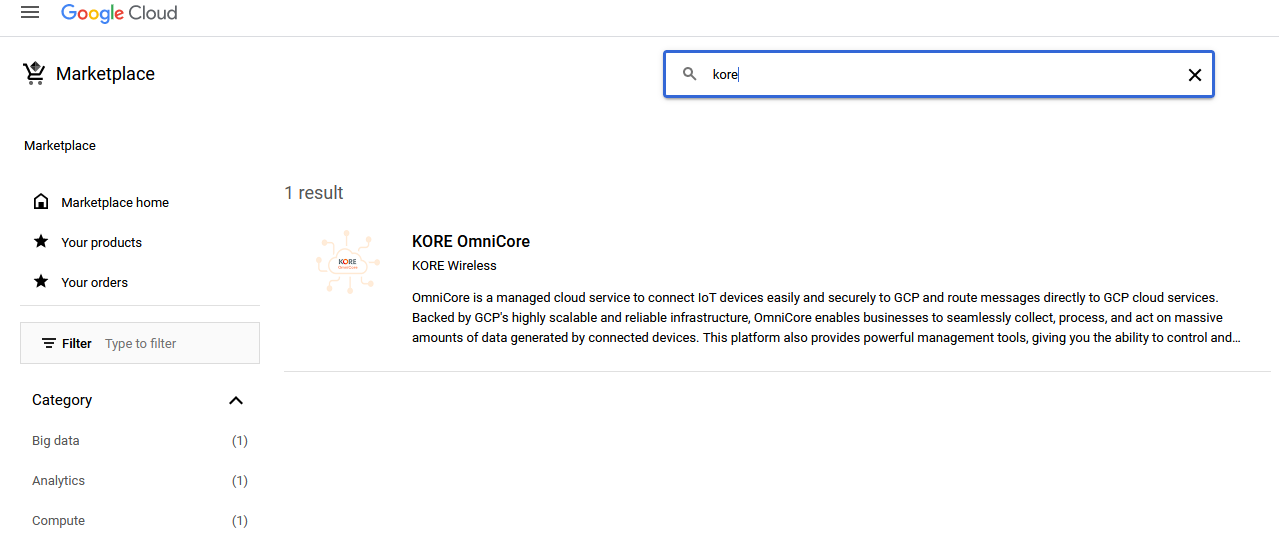
- Search for OmniCore and you should find the product listed. Refer to the screenshot below for reference.
GCP marketplace view
- Once you subscribe to the OmniCore product from Google Marketplace, you should receive an email with login information.
- Use the link in the email to navigate to "OmniCore Home page".
Getting Device Telemetry, State information and Logs into your Google Project
Sink Configuration
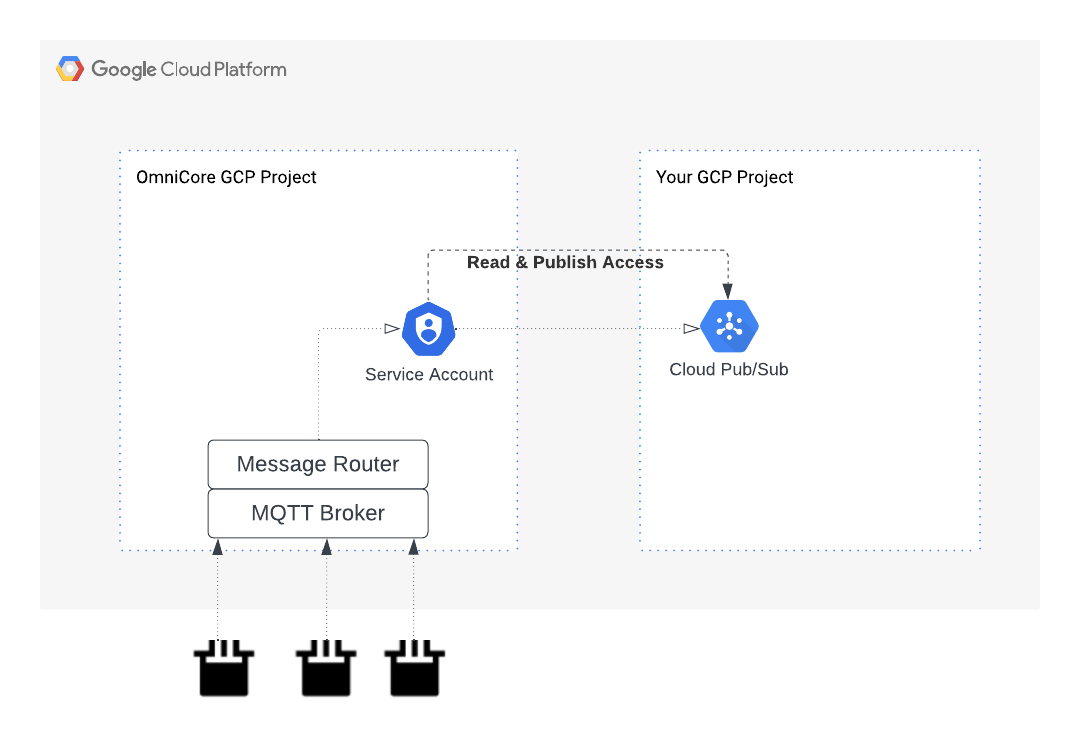
OmniCore's Service Account requires two IAM access permissions in order to send telemetry, state, and log messages to your GCP account's Cloud Pub/Sub. These two permissions are:
- Cloud Pub/Sub Read Access
- Cloud Pub/Sub Publish Access.
OmniCore refers to this as the 'Sink.' With these access permissions granted, OmniCore can effectively forward telemetry, state, and log messages to your Cloud Pub/Sub.
Sink Configuration Notification
Upon logging into OmniCore for the first time, you will be greeted with a prompt notification reminding you to set up a new 'Sink.' This notification will remain visible until at least one Sink has been successfully configured.

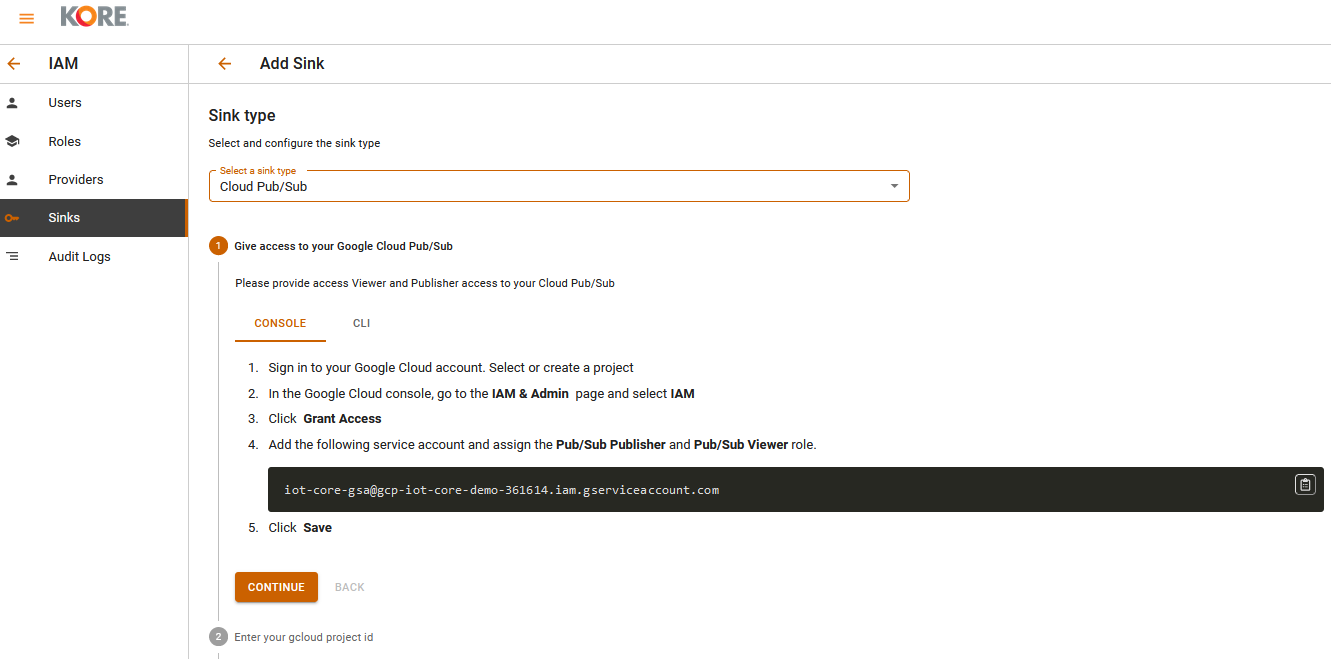
Sink Configuration Page
You can then navigate to Sink page, use the guided navigation forms and activate a Sink .